Selling originals in your Printumo Shop
October 16, 2026
Table of contents
Step 1: Add an original Step 2: Add photos and the details Step 3: Set the price Step 4: Set the shipping Step 5: More options (optional) Step 6: Add it to your shop What buyers see Hide the price: Price on request When an original sells Good to knowYour Printumo Shop can sell your originals next to your prints: a painting, a drawing or any other one-of-a-kind piece. You photograph it, set the price and the shipping, and deliver it to the buyer yourself. Printumo takes no commission on originals, so the full price goes to your Stripe account. Every Printumo Shop can sell originals, and there is no limit on how many you add.
Step 1: Add an original
- Sign in to Printumo and click "Printumo shop" in the left menu.
- Open the "Products" tab and click "Add product".
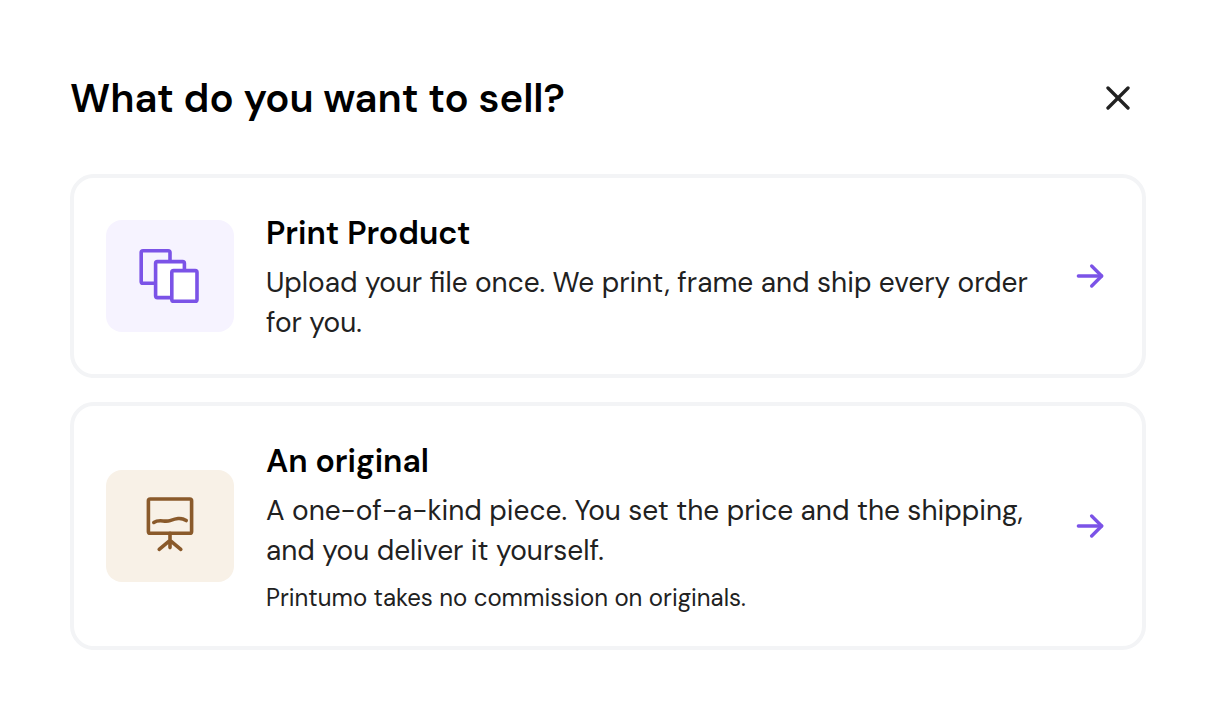
- Choose "An original".
Step 2: Add photos and the details
- Photos: add up to 10 photos in JPG, PNG, WebP or HEIC. Each photo can be up to 25MB and must be at least 500 pixels on its long side. The first photo is the cover. Drag the photos to change their order.
- Title and description: tell buyers about the piece, for example the medium, whether it is signed and whether it is framed.
- Size (optional): type the width and the height in cm or inches. Type both, or leave both empty.
Step 3: Set the price
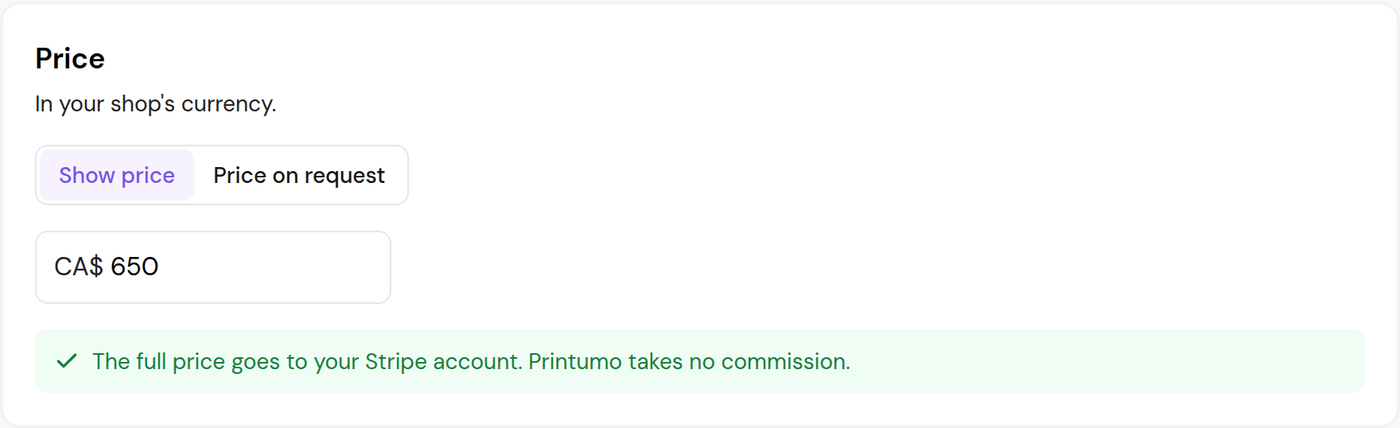
Type the price in your shop's currency. You can use a comma or a full stop for the decimals. If you would rather not show a price, choose "Price on request". See Hide the price: Price on request below.
Step 4: Set the shipping
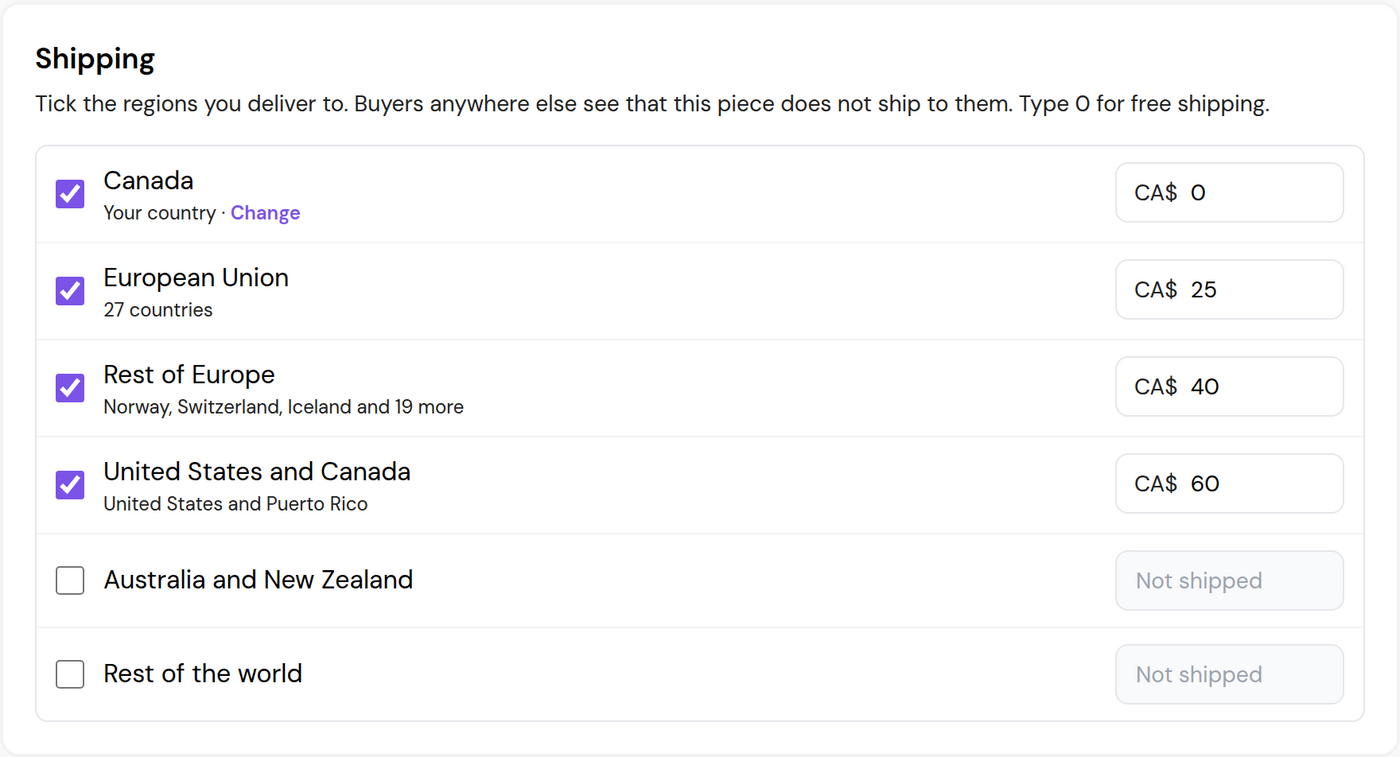
You deliver originals yourself, so you decide where you deliver and what it costs.
- Tick each region you deliver to: your own country, the European Union, the rest of Europe, the United States and Canada, Australia and New Zealand, and the rest of the world.
- Type one shipping price for each ticked region. Type 0 for free shipping.
- If your own country is wrong, click "Change" under it.
Buyers in a region you did not tick see that the piece does not ship to them, and they cannot check out with it. Your next original starts with the same regions and prices, so you only set this up once.
Step 5: More options (optional)
Click "More options" at the bottom of the form.
- Quantity: an original is "One of a kind". Choose "Small edition" and type how many if you sell a few of the same piece.
- When it sells: choose "Keep it in my shop, marked Sold" or "Remove it from my shop". A sold piece that stays in your shop shows an "Ask about similar work" button, so it can still bring you your next buyer.
Step 6: Add it to your shop
Click "Add to shop" to put it in your shop now, or "Save as hidden" to finish it later. To change it later, open the "Products" tab and click the original. At the top you can switch it between "Listed" and "Hidden".
What buyers see
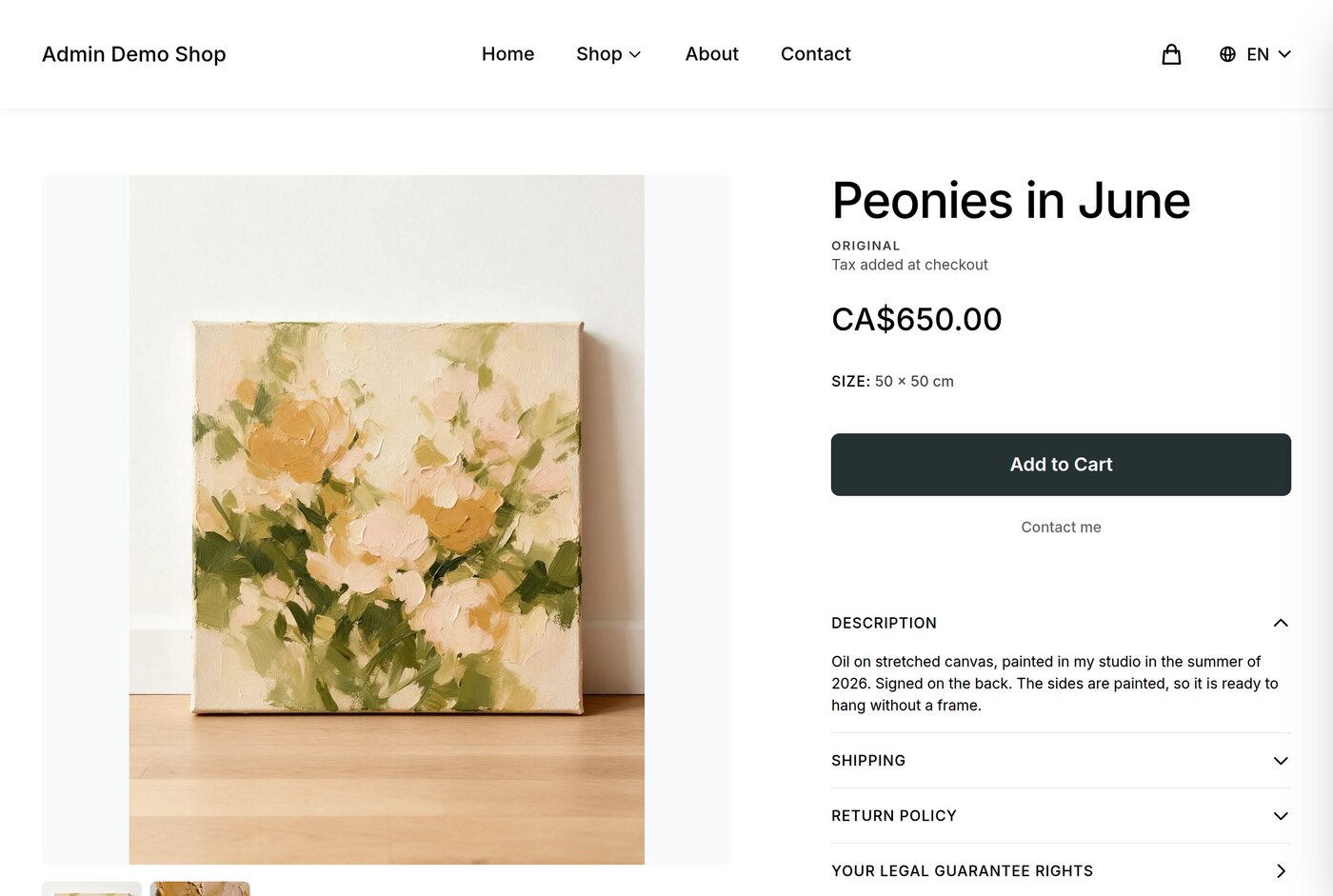
The product page says "Original" under the title and shows the size, the price and an "Add to Cart" button. The Shipping section shows what delivery costs to the buyer's country.
While one buyer pays for a piece, it is set aside for them for about half an hour, so two people cannot buy it at the same time. Other visitors see that someone is buying it right now.
Hide the price: Price on request
Some artists prefer to talk to a buyer before they name a price. With "Price on request", your shop shows no price for the piece. Buyers ask you for it instead.
- Open the "Products" tab and click the original.
- Under Price, choose "Price on request". The price box goes away.
- Click "Save".
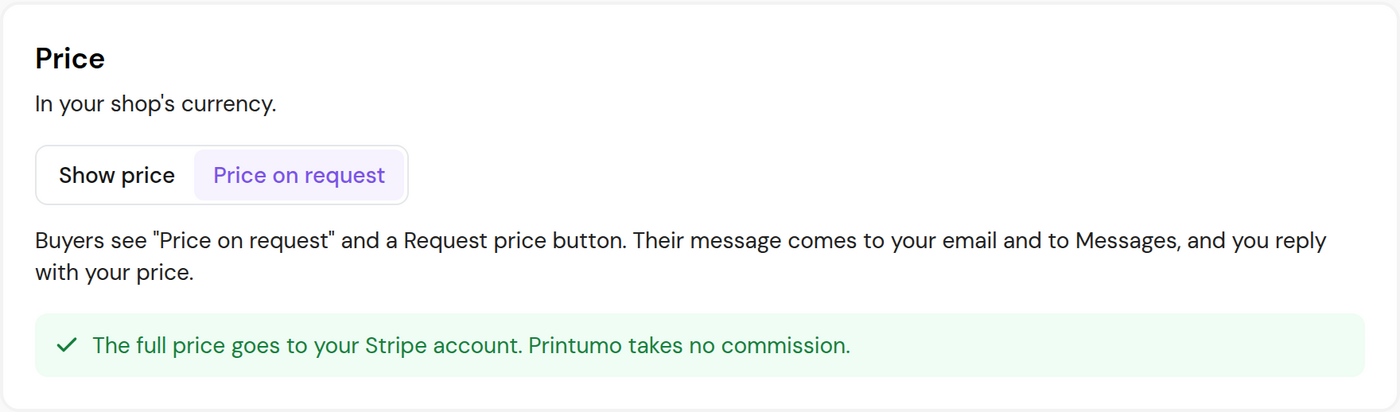
Buyers now see "Price on request" and a "Request price" button where the price and the "Add to Cart" button were. Your shop's product list says "Price on request" too.
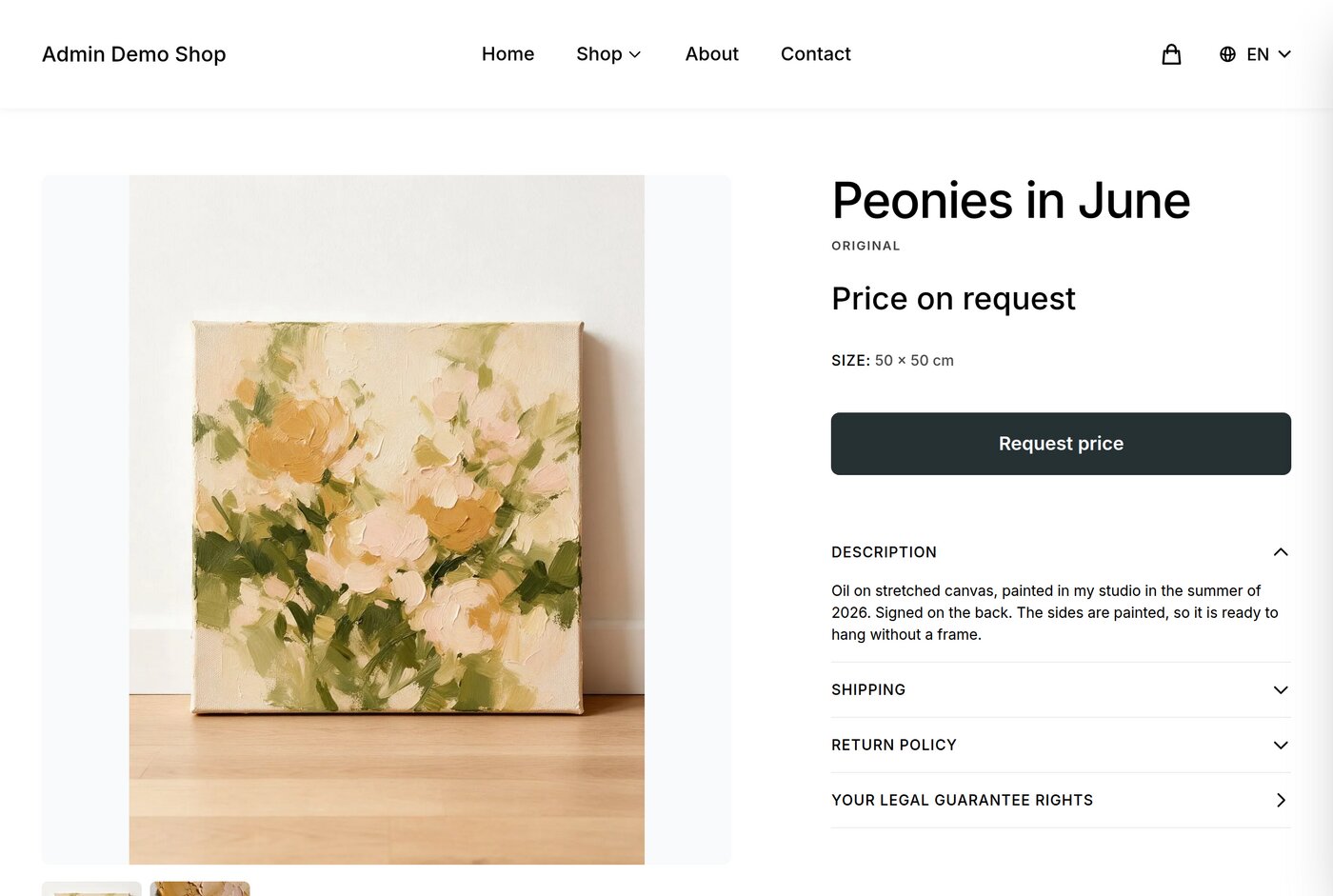
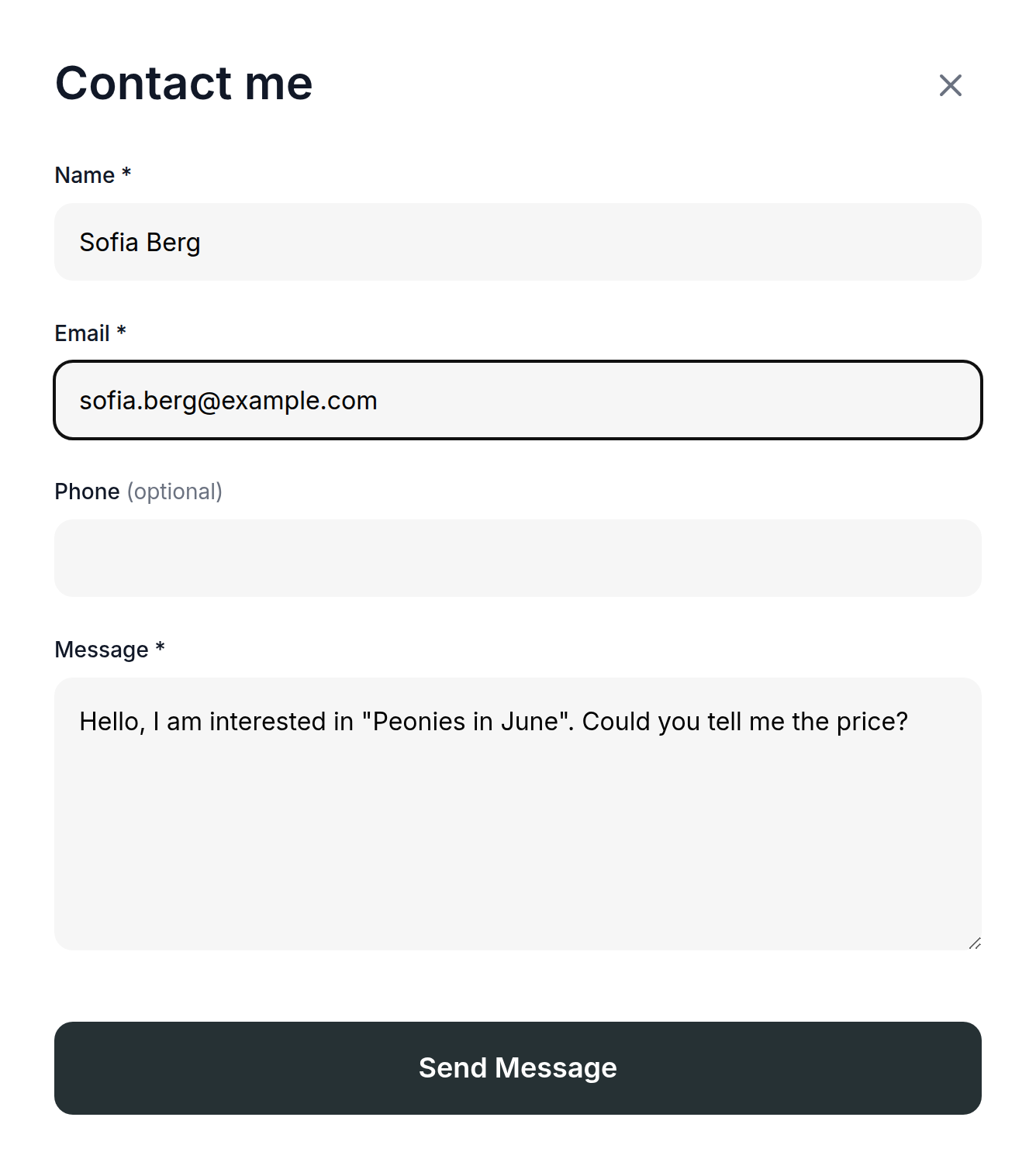
When a buyer clicks "Request price", a contact form opens with the question already written. They add their name and email, and can add a phone number and more to the message.
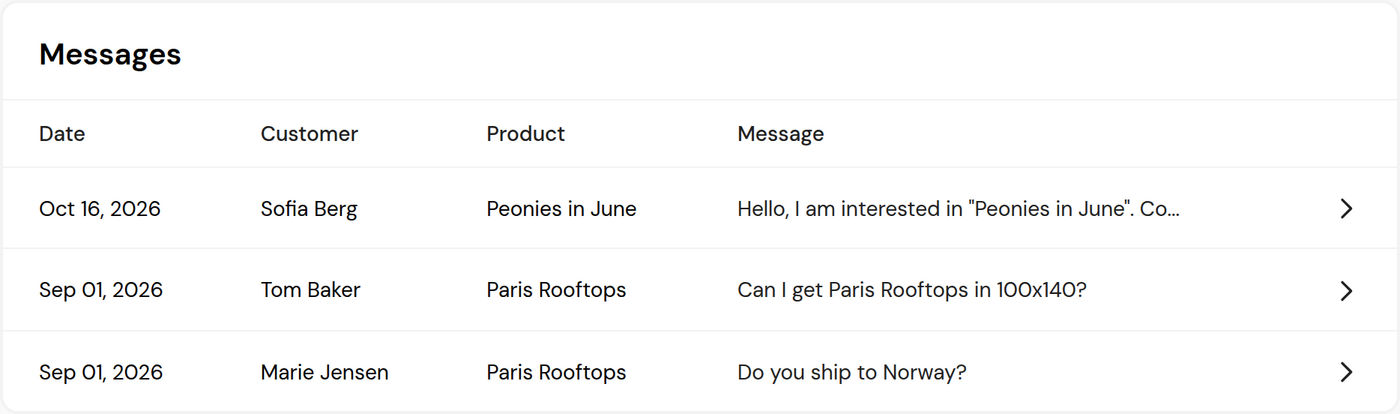
You get the message by email, with a subject that starts with "Price request for". Click reply in your email to answer the buyer directly. The message is also saved on the "Messages" tab of your Printumo shop.
When you and the buyer agree on a price, open the original, choose "Show price", type the price and click "Save". The buyer can then buy it in your shop as usual. A piece with its price on request cannot be added to a cart.
When an original sells
- You get an email that says you sold it, with the buyer's address. The money is in your Stripe account.
- Pack the piece and deliver it to the buyer.
- On the "Orders" tab, open the order. Under "Ship the original", add the carrier and the tracking number if you have them (both are optional).
- Click "Mark as shipped". The buyer gets an email with your tracking number.
Printumo bills you nothing for an original. If the same order also has prints, Printumo makes and delivers those as usual, so the buyer gets two parcels.
Good to know
- Originals are sold only in your Printumo Shop. They are not sent to Shopify, Etsy, Wix or any other store you have connected.
- A sale or discount code for your whole shop does not lower the price of an original. Your shop's sale bar then says the sale is on all prints.
- You need a connected Stripe account to sell originals, the same as for prints.
Did this answer your question?